Tuesday, June 4, 2024

Video playback blinking a black screen in VLC

Was attempting to play a video file, and it just refused to play on my Windows machine.
VLC would play the audio, but the video would blink black and weirdly, would seem to make me loose control of VLC

There were a number of codec changes etc. that were reported to fix the problem, never worked for me.

What DID fix my issue was installing the 64 bit version of VLC, which I really don't recall ever knowingly do before!  Fixed the problem right up for me


Send CTRL ALT DEL via mRemoteNG

 Not 100% sure why this can be such a problem to do a simple thing, but sometimes it is.

On the remote session, bring up the onscreen keyboard


On your LOCAL COMPUTER, press CTRL and ALT.   The corresponding keys should light up on the remote session


Now click on the "DEL" on the onscreen keyboard


Voila.


If this posting has been of any help to you, I'd love to know! 
If you have suggestions of how to improve it, let me know in the comments!  Thanks!


Wednesday, May 29, 2024

Breakup recordings individually automatically in Audacity

Scenario:

A recorded list of names, with some silence between each one.  Need them individually saved into their own file name.  Audacity can do this automatically.  Tested in version 3.4.2

1:

Load your recording file with all the names into audacity.

Here is my list of names, 26 of them


There is about 1-2 seconds of blank space between each name:


2:

Now Select the entire recording


3: 

Select "Analyze" then "Label Sounds"


4:
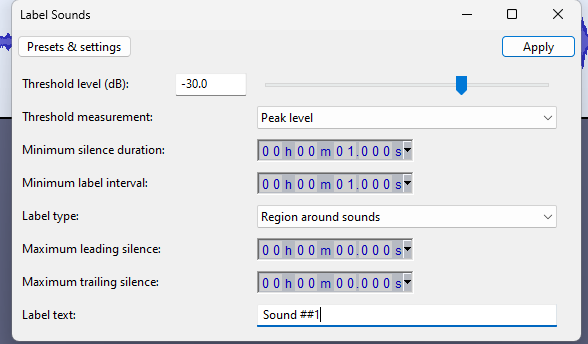
Now you can alter the parameters to decide when the audio is split up.  I pretty much left it at default for my case.  Click on "APPLY"


Audacity will now Label each audio section.  This is a good way to see if your parameters are enough to get you the divisions you need.


5:
Select FILE-> Export Audio
Select the folder you want to put them in
Select "Multiple Fles"
Select "EXPORT"


6:
Open the folder you put them in 


If this posting has been of any help to you, I'd love to know! 
If you have suggestions of how to improve it, let me know in the comments!  Thanks!


Thursday, May 23, 2024

Retrieve password from mRemoteNG


  1. Open mRemoteNG and go to the menu Tools -> External Tools

  2. Then select New to create a new external tool.

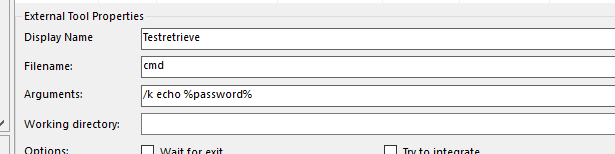
  3. In the External Tools Properties at the bottom of the screen, fill in the following:

    Display Name =Any name that you want

    Filename =  CMD
    Arguments = /k echo %password%

    Should look like this:


Next go to the connection where you would like to retrieve the password from and right-click on it and choose “External tools” -> The tool you just defined.


Will get an output like this:


If this posting has been of any help to you, I'd love to know! 
If you have suggestions of how to improve it, let me know in the comments!  Thanks!


Monday, April 15, 2024

Factory Reset Sony SRG X120 X400 Camera

 Get a paper clip

Stick it in the hole for at least FIVE seconds where #11 indicates.


The camera will do a quick reset and you can logon with

admin / Admin_1234

The default IP is usually 192.168.0.100

The dip switch in the back, #3 will need to be set to #1 on to access the HTTP 

I hope this post was of help to you! If you have suggestions of how to improve it, let me know in the comments!  Thanks!


Thursday, April 4, 2024

Some autohotkey commands

 Some commands that I fought with but finally was able to make work.

Send key "F2" to a window that might not be active without stealing focus from the active window


In this example, i wanted to first get the actual windows title associated to the executable.

processName := "vMix64.exe"

if (WinExist("ahk_exe " . processName)){

WinGetTitle, title, ahk_exe %processName%

} 

ControlSend,, {F2},%title%


Sunday, March 3, 2024

Sony SRG Visca Control via OBS

 Here's a quick and dirty how to make Visca over IP work on a Sony XRG series camera.

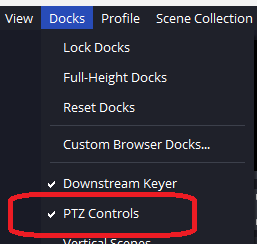
The plugin i'm using to test with OBS is PTZ Controls v0.15.4

Install that for your OBS

Then launch it.


Click on the GEAR icon in the lower left corner


Click on the + icon in the lower left corner and select "VISCA (UDP)"

In the IP address enter in the IP of your camera and then enter 52381 (default Sony port) as the port.  Click APPLY

Go back to the PTZ control and you should now be able to use the arrows to move your camera.


I hope this post was of help to you! If you have suggestions of how to improve it, let me know in the comments!  Thanks!