Tuesday, February 7, 2023

Sony SRG-x120 VISCA pinout

 Here's a link to the PDF this comes from:


Some general Asterisk dialpaln code

Save a Voice recording into a MySQL database

Here is an example of an Asterisk dialplan that asks for a voice recording and then saves it into a MySQL database:

[macro-record-and-save]

exten => s,1,Answer()
exten => s,2,Record(recording:/tmp/recording)
exten => s,3,System(mysql -u [username] -p[password] -h [host] [database] -e "INSERT INTO recordings (filename) VALUES ('/tmp/recording')")
exten => s,4,Hangup()

Replace the square bracket placeholders with the values for your setup
MySQL username, password, host, and database name. 


Example IVR dialplan for Asterisk:

[ivr]
exten => s,1,Answer
exten => s,2,Wait(1)
exten => s,3,Playback(welcome-to-our-company)
exten => s,4,Wait(1)
exten => s,5,Background(press-1-for-sales)
exten => s,6,Background(press-2-for-support)
exten => s,7,Background(press-3-for-billing)
exten => s,8,Background(or-stay-on-the-line)
exten => s,9,WaitExten(10)

exten => 1,1,Goto(sales,s,1)
exten => 2,1,Goto(support,s,1)
exten => 3,1,Goto(billing,s,1)

[sales]
exten => s,1,Answer
exten => s,2,Wait(1)
exten => s,3,Playback(sales-department)
exten => s,4,Wait(1)
exten => s,5,Background(sales-representative)
exten => s,6,WaitExten(10)

[support]
exten => s,1,Answer
exten => s,2,Wait(1)
exten => s,3,Playback(support-department)
exten => s,4,Wait(1)
exten => s,5,Background(support-representative)
exten => s,6,WaitExten(10)

[billing]
exten => s,1,Answer
exten => s,2,Wait(1)
exten => s,3,Playback(billing-department)
exten => s,4,Wait(1)
exten => s,5,Background(billing-representative)
exten => s,6,WaitExten(10)

When a call comes in, they here a welcome message followed by options to press 1 for sales, 2 for support, or 3 for billing.

If the caller presses 1, they are transferred to the sales extension.
If the caller presses 2, they are transferred to the support extension.
If the caller presses 3, they are transferred to the billing extension.
If the caller does not press a key, they stay on the line for 10 seconds before being disconnected.

Each department extension plays a message indicating which department the caller has been transferred to and then waits for 10 seconds for a representative to answer.


Dialplan that asks a user for their passcode and performs a MySQL lookup to compare it:

[passcode-lookup]
exten => s,1,Answer()
exten => s,2,Background(enter-passcode)
exten => s,3,WaitExten(10)
exten => s,4,GotoIf($[${LEN(${EXTEN})} = 4]?check)
exten => s,5,Background(invalid-passcode)
exten => s,6,Goto(s,2)

; check the passcode against the database
exten => s,n(check),Set(DB_RESULT=${MYSQL(SELECT id FROM passcodes WHERE passcode='${EXTEN}')})
exten => s,n,GotoIf($[${DB_RESULT} = 0]?incorrect)
exten => s,n,Background(passcode-accepted)
exten => s,n,Hangup()

; play "incorrect passcode" and go back to the beginning
exten => s,n(incorrect),Background(incorrect-passcode)
exten => s,n,Goto(s,2)

The Answer command answers the caller.
The Background command plays a message asking the caller to enter their 4 digit passcode. The WaitExten command waits for 10 seconds for the caller to enter a 4-digit passcode.

The GotoIf command is used to check the length of the entered passcode. If the length of the entered passcode is not 4 digits, the dialplan will play "invalid passcode" prompt and go back to the beginning.

The Set command is used to perform a MySQL lookup to compare the entered passcode against the passcodes in the database. The MYSQL function returns the id of the passcode if it is found in the database, and 0 if it is not found.

The GotoIf command is used to check the result of the MySQL lookup. If the result is 0, the dialplan plays an "incorrect passcode" message and goes back to the beginning. If the passcode is found in the database, the dialplan plays a "passcode accepted" message and hangs up the call.

Note: This dialplan assumes that you have a MySQL database set up with a table named passcodes containing a column named id and a column named passcode. You will need to modify the MySQL query to match the structure of your database.

Sunday, February 5, 2023

Setting up Sony SRG X120 X400 cameras with RM-IP controllers

This is a kind of high-level setup of X120 cameras.  

Essentially:

Cameras will need to be accessible from the IP network as the controller.  You can  HTTP to each camera's ip address and lock in an IP address.

Then use the IP controller app SONY PTZ SRG-X120 - Google Drive called "RM-IP" 

Make sure that you have the cameras setup into group and with unique names.  The group number coincides with the RM-IP10 controller.

On the controller itself there are two rows of DIP switches.  Bottom row, #8, you set to on to allow writing.  Power cycle the controller, the lights on the controller will blink continuously.

Go to the RMIP app, and you should be able to select the controller (assuming all on same network).
under "CAMERA TABLE" what I do is select the spots that I want to occupy a camera, then use "AUTO ASSIGN" then assign the IP range(s) of the cameras I want.

Apply it, and then once you have done that.  Flip the switch 8 on the controller back to normal position and power cycle it.  Should be good to go.

Sunday, January 22, 2023

Multiple rtsp on Sony SRG-X120

Here's how you get multiple RTSP streams working on a SRG-X120 camera

By Default, 1 RTSP stream is configured.  All you have to do to make it work is go to your device that you want to get the video and create a rtsp connection like this:

rtsp://IP_of_CAM/video1  rtsp://IP_of_CAM/video2 and rtsp://IP_of_CAM/video3

You have to activate video2 and video3.

Go to SETTINGS -> VIDEO -> VIDEO CODEC


You'll see "Image 1" is configured, but by default, "Image 2" and "Image 3" are not.

In the drop box, select "H.264" and then you can adjust the other settings if you want. 
Default might be enough.

Click on "OK"

Here's an example in OBS connecting to the second RTSP stream using a "MEDIA Source" 

put in the URL (same url for VMIX)

rtsp://IP_of_CAM/video2  /video2 or /video3

Remove "INPUT FORMAT" entry.


Click on "OK" 

Couple of seconds later you should see video!

SRT setup on a Sony SRG-X120 SRG-X400

 Here's a bit of info on how to setup a SRT config on an SRG-X120 camera.

First, you'll need version 3.0 of the firmware

You can go to Sony's page to get the firmware and instructions how to update

1> First, to get SRT activated, go to  Settings-> Audio-> SEND = Enabled -> OK


2> Then you go into your camera, go to SETTINGS - STREAMING


3> In Streaming mode, pick if you are a Caller or a Listener


Caller = You are going to have the camera connect to an IP and send the video
Listener = External device is going to connect to the camera IP to receive the video. 

SRT-LISTENER MODE AND SRT-CALLER MODE

#############    SRT-LISTENER MODE   ######################
I find "LISTENER" mode more robust.  If there's a network hiccup, OBS will attempt to automatically reconnect to the camera stream.

1> On the SRG-X120 interface go to SETTINGS - STREAMING

2> select Streaming Mode "SRT-LISTENER

In our example, we are leaving everything default, we are just giving it port 4201 for our example


3> Click on "OK" at the bottom

This example uses OBS as the video switcher that is going to reach out to the camera and get the feed.  So the OBS instance will be using "CALLER MODE" to match the camera's "LISTENER" mode.

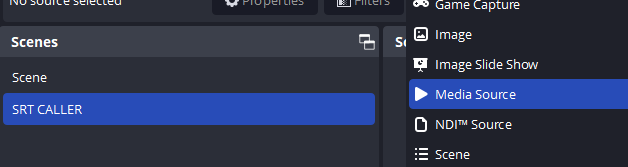
4> In OBS we are going to create a scene called SRT Caller
then we are going to select a "MEDIA SOURCE"


5> Inside MEDIA SOURCE we'll UNCHECK "Local File"

7> in the "INPUT" box we'll put in the following syntax

srt://SRT_Source_IP:PORT?mode=caller&latency=5000

The SRG X120 camera's IP is 192.168.0.14, so that is the IP we put in the OBS system.  We'll define the port, we are using 4201 in this example.  So the Syntax will look like:

srt://192.168.0.14:4201?mode=caller&latency=5000


8> Click on "OK"

You should now see the source video automatically appear


One thing to note:  I've noticed that sometimes the video won't appear right away, this might be from just doing some different configs, but something to try is bouncing the SRG-X120 streaming mode "OFF" then "ON" again.


Make sure that you select "OK" at the bottom of the selection window to activate the different selection modes.


###########              SRT-CALLER MODE            ###########
Caller mode does not support an automatic retry if the destination (OBS) becomes unavailable.

In this example, we'll have the camera SEND the video to a device, in our example, OBS

1> We'll select SRT-Caller
2> in "DESTINATION" entry box we'll put in the following syntax

    srt://Destination_IP:PORT

In the case of the example, the OBS computer receiving the video is 192.168.0.5 and it will listen on port 4501

srt://192.168.0.5:4501


For simplicity in our example, we'll leave all the other values as default and 

3> press OK at the bottom

4> In OBS, we'll create a new scene called called "SRT LISTENER" 

and inside sources we'll create a Media Source 


5> Inside MEDIA SOURCE UNCHECK "Local File"

6> Uncheck "Restart playback when source becomes active"

7> in "INPUT" we'll put in the following syntax

srt://LocalOBS_IP:PORT?mode=listener&latency=5000

In this example, OBS is running on a computer with the ip of 192.168.0.5, so that is the IP we put in the OBS system.  We'll define the port, we are using 4501 in this example. 
The Syntax will look like:

srt://192.168.0.5:4501?mode=listener&latency=5000


8> Select OK

10> Now go back to your SRG-X120 camera GUI

9> Click on LIVE at the top

then down a bit in STREAMING 

10> click on "STREAM NOW".  You should see the destination IP and port.


10> You will be asked to confirm that you want to stream


In the SRG-X120 screen you will see (assuming everything was configured correctly) the screen give a red outline to indicate its streaming:


And if you go to OBS (or whatever system you are receiving the video) it should show up

Saturday, January 21, 2023

Sony SRG-X120 Firmware upgrade

Settings - Initialize -

Select the firmware you want to apply om tje 
Version Up section


You'll get prompted the transfer is happening.


Within 2 minutes (usually less) you will see this message:

If your camera is stuck in the "transferring" dialog window shown above, after 5 minutes, in my experience its safe to power cycle the camera and try again.


After about 10 minutes the light goes from blinking red to blinking green, then steady green, then 2 steady green lights.  After about 2 minutes the camera should be accessible again.

Factory HTML Password

Username: admin 

Password: Admin_1234

Tuesday, January 10, 2023