Monday, October 2, 2023

QLC+ Information

Custom Fixture location Windows

 C:\Users\USERNAME\QLC+\Fixtures


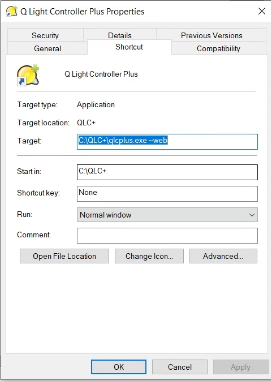
Start QLC with web controller: 

add --web to the target name.


Default port for the web client is 9999


USE QLC to activate DMX based on clock time of day

Set a clock timer in QLC+ that, at a given time, triggers a sequence which lasts X amount of time.

EXAMPLE:
At 8:30AM power up the DMX lights, then leave them powered up for 5 hours, at which time, they will turn off.

You can do this with QLC+ (free) some junk laptop (windows/mac) and likely a $25 USB/DMX adapter.

You can set QLC to launch/run automatically minimized. Assuming computer is on the network, you can use a phone/tablet/computer to remotely turn the lights off/on or other DMX type functions.

1 - Add a DMX fixture in QLC


2 - Create a sequence

3 - Create a clock sequence


4- start the app
5 - Modify the startup of QLC to run this all automatically.
Save the above work.  I've called it "testsequence"

Modify the target and add --open FILENAME.qxw

Set it for MINIMIZED if you want to hide QLC as much as possible.


Give it a try!


I hope this post was of help to you! If you have suggestions of how to improve it, let me know in the comments!  Thanks!

Thursday, September 7, 2023

Chauvet Vivid 4 Information and NovaLCT

This is some info on the vivid 4 wall panels.  

Panel files

Right from Chauvet site

Or local files

Upgrading "rcfgx" Configuration files using Novastar app

Launch it


User -. Advanced Synchronous system user login

password "ADMIN"

Goto "screen configuration"

Select "NEXT" (assuming you have a com port selected for your wall)

Select receiver, then select your file and update.  Dont forget to click save at the bottom when the process is done.


=================================

Had another situation where one of my screens went into factory reset.  The light on the back of the panel was solid yellow, vs a red/greed blink that it normally does

Went into NovaCTL, logged in as admin under the "USER" menu, then you type ADMIN again and a hidden menu shows up.

For ME, I had to upload the following file:  Once i uploaded it, screen was working.     

17\A5s_MCU_Data_V1.0.3.4 OnboardFlash speed 1.5M


I hope this post was of help to you! If you have suggestions of how to improve it, let me know in the comments!  Thanks!


Thursday, May 11, 2023

Controlling OBS using PowerPoint

Controlling OBS using PowerPoint with VBA code in Windows

This document explains how to make PowerPoint control OBS scenes as you advance slides.

1> The first part is to activate Websockets in OBS. 
Enable it, we can use the default port of 4455 and then set a password


On your PowerPoint computer you are going to want to install the following program

"Nutty's Official OBS Commander - NOOBS CMDR"  

This program will translate commands in a .BAT file and send them to an OBS instance.  

Create a PowerPoint document, create a VBA macro and the code at the bottom of this document.  
It will look like the following:


Create .BAT files on the PowerPoint computer with syntax similar to the following.   

OBSCommand.exe /server=OBSipADDRESS:4455 /password="YOURpassWORD" /scene="SCENEnameEXACT Spelling"

scene
= name will contain the name of the scene you want your OBS to go to when you execute this command

server=the IP of your OBS computer.

password= Password you assigned in the websockets window

Save the file as the name of what you will call it in power point as a reference. 
If you want to use the word "Widescreen" to switch your camera to a scene that has a wide shot, name the file "widescreen.bat".  In our system we have "choir.bat" and "closeup.bat".

Place these files in the c:\obscommand folder that is created when you install the OBS command application.

Upon creation of these files, you can double click them and you should see your OBS reflecting the changes.  Once you have that working, continue to the next step. 

5> In your PowerPoint Document put in the first line of the presenter notes the following:

widescreen


6> Start your presentation, then activate the macro. 


 7> Now in presentation mode, as you goto the slides with the name in the presenation, you should see the slides change.

PowerPoint vba script

What the code does is watch the Presentation View of your PowerPoint, and reads the first 15 characters of the first line.  Then it adds a .BAT to the end of whatever word is there and tells your PowerPoint computer to run any file with that name in the folder.  If matching, then it will run that code and that code will send commands to your OBS.

Sub OnSlideShowPageChange()
On Error GoTo ErrorHandler
Dim ActiveSlide As Integer
Dim ActiveSlideNotes As String
Dim FullCommand As String
Dim WAIT As Double
Dim strTextUCase As String

ActiveSlide = ActivePresentation.SlideShowWindow.View.CurrentShowPosition
ActiveSlideNotes = Left(ActivePresentation.Slides(ActiveSlide).NotesPage.Shapes.Placeholders(2).TextFrame.TextRange.Text, 11) 'get the first 11 characters of the notes file
strTextUCase = UCase(ActiveSlideNotes) 'convert all characters to uppercase.  The .bat files don't care but the macro does care
ActiveSlideNotes = strTextUCase
FullCommand = Left(ActiveSlideNotes, 15)      'get the right most 15 characters xxx-yyy
Shell ("CMD.EXE /c C:\OBSCommand\" & FullCommand & ".bat")     'send a shell command based on the value found, with .BAT added to the end.

done:
AppActivate ("PowerPoint")

'IF the macro is run but the slideshow isn't, this will start the current one in presentation mode ErrorHandler: Dim pptApp As PowerPoint.Application Dim pptPres As PowerPoint.Presentation Set pptApp = PowerPoint.Application ' Use the current instance of PowerPoint Set pptPres = pptApp.ActivePresentation ' Start the slide show from the first slide pptPres.SlideShowSettings.StartingSlide = 1 pptPres.SlideShowSettings.EndingSlide = pptPres.Slides.Count pptPres.SlideShowSettings.ShowWithNarration = True pptPres.SlideShowSettings.ShowWithAnimation = True pptPres.SlideShowSettings.Run End Sub


Tuesday, February 14, 2023

Import SPOUT and capture it in OBS

SPOUT is an output mechanism that some programs use to output video.  I think its (mostly) used by DJ world that generate video backgrounds. I dunno, thats where I've encountered it.

I use Synesthesia.live to generate background for an LED wall.  I run them through OBS to use it as a scaler and to allow me to intermix video elements generated through OBS to my video wall.

Synesthesia can output its generated backgrounds as a "SPOUT" feed, and with the proper plugin, OBS can import it.  Its really similar to NDI.

In Synesthesia, I activated the SPOUT server.


In OBS i installed a plugin for this location.

Backup location for the file exe

I installed that

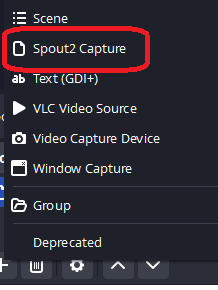
Then created a Scene, and in that scene added an Source "Spout2Capture"


Selected the Synesthesia SPOUT feed (that was configured in the Synesthesia "Live Source" example above

Click OK and voila!


Friday, February 10, 2023

MSWINSCK.OCX problems

First, make sure that file is in windows\syswow64

Then open a CMD prompt as administrator and enter in

regsvr32 \windows\syswow64\mswinck.ocx


That should take care of it.


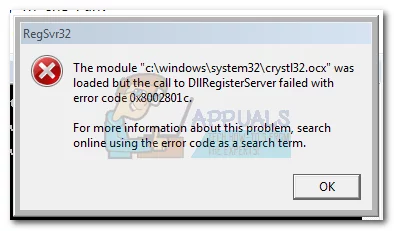
The error 0x8002801c occurs when there’s a problem accessing the OLE (Object Linking and Embedding) registry. Insufficient system permissions will trigger this error code when the registration of an OCX (OLE control extension) file fails to complete. This is known to happen frequently when using regsvr32 via Command Prompt on Windows 7.

It’s a common occurrence to see this error code when trying to register an OCX file from C:\ Windows\ system 32. Most of the time, the call to the DLLRegisterServer fails because of a permission problem and has nothing to do with the actual OCX component that you are trying to register.

Fortunately, the error 0x8002801c can be avoided by copying the OCX file to C:\ Windows\ SysWOW64 and repeating the operation with administrator privileges. If you’re currently dealing with this issue, follow the step by step guide below to eliminate the error 0x8002801c and successfully register your OCX File.

Fixing Error 0x8002801c after OCX File Registration fail

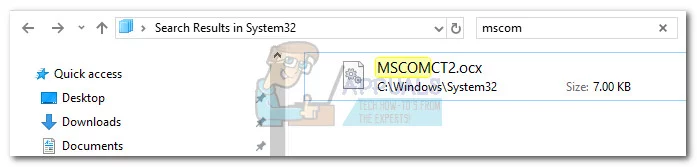
  1. Open File Explorer and navigate to your Windows partition. Next, go to Windows > Windows 32 and use the search bar to look for the OCX file.
    Note: In this case, the file name is MSCOMCT2.OCX, but you can replicate this procedure any OCX component that fails to register.
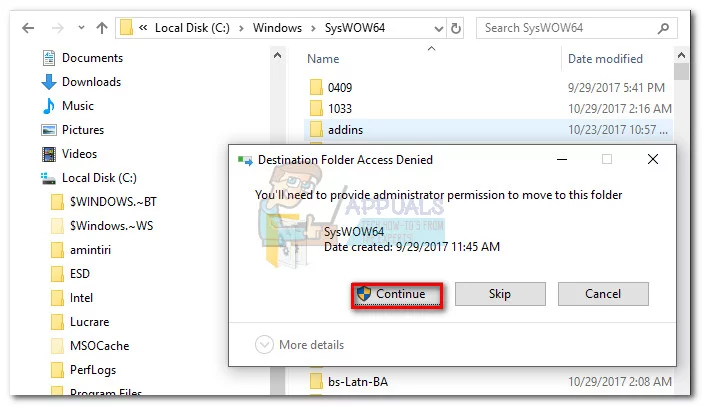
  2. Copy the OCX file to your clipboard. Next, go back to the Windows folder and open up the folder named sysWOW64. Then, simply paste the OCX file there.
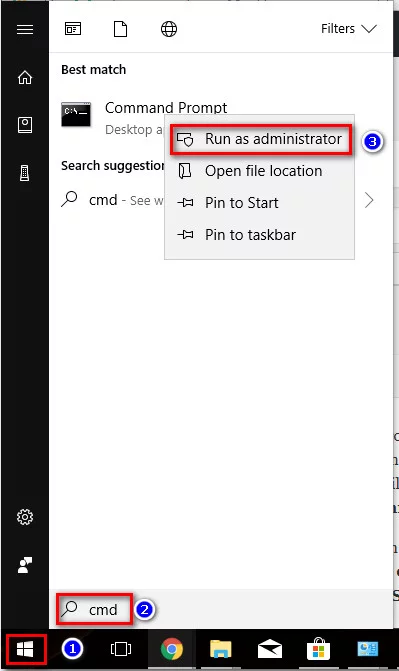
  3. Open the Start menu (bottom-left corner) and type “cmd“. Then, right-click on Command Prompt and click on Run as Administrator.
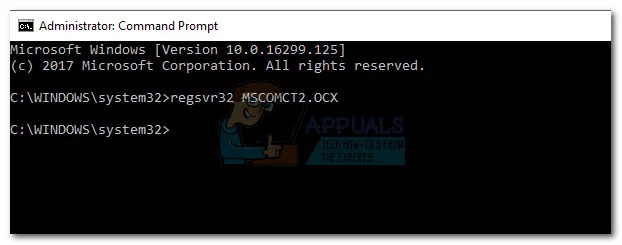
  4. In the Elevated Command prompt, type regsvr32 + the OCX component. In our case, the final command would be “regsvr32 MSCOMCT2.OCX”. Upon hitting enter, you will be prompted with a message telling you the file was successfully registered.

That’s it. You can use these four steps to grant proper permissions to any OCX file that is causing the 0x8002801c error code. Most of the time it will allow you to register the ActiveX component and eliminate the issue.


Tuesday, February 7, 2023

Sony SRG-x120 VISCA pinout

 Here's a link to the PDF this comes from:


Some general Asterisk dialpaln code

Save a Voice recording into a MySQL database

Here is an example of an Asterisk dialplan that asks for a voice recording and then saves it into a MySQL database:

[macro-record-and-save]

exten => s,1,Answer()
exten => s,2,Record(recording:/tmp/recording)
exten => s,3,System(mysql -u [username] -p[password] -h [host] [database] -e "INSERT INTO recordings (filename) VALUES ('/tmp/recording')")
exten => s,4,Hangup()

Replace the square bracket placeholders with the values for your setup
MySQL username, password, host, and database name. 


Example IVR dialplan for Asterisk:

[ivr]
exten => s,1,Answer
exten => s,2,Wait(1)
exten => s,3,Playback(welcome-to-our-company)
exten => s,4,Wait(1)
exten => s,5,Background(press-1-for-sales)
exten => s,6,Background(press-2-for-support)
exten => s,7,Background(press-3-for-billing)
exten => s,8,Background(or-stay-on-the-line)
exten => s,9,WaitExten(10)

exten => 1,1,Goto(sales,s,1)
exten => 2,1,Goto(support,s,1)
exten => 3,1,Goto(billing,s,1)

[sales]
exten => s,1,Answer
exten => s,2,Wait(1)
exten => s,3,Playback(sales-department)
exten => s,4,Wait(1)
exten => s,5,Background(sales-representative)
exten => s,6,WaitExten(10)

[support]
exten => s,1,Answer
exten => s,2,Wait(1)
exten => s,3,Playback(support-department)
exten => s,4,Wait(1)
exten => s,5,Background(support-representative)
exten => s,6,WaitExten(10)

[billing]
exten => s,1,Answer
exten => s,2,Wait(1)
exten => s,3,Playback(billing-department)
exten => s,4,Wait(1)
exten => s,5,Background(billing-representative)
exten => s,6,WaitExten(10)

When a call comes in, they here a welcome message followed by options to press 1 for sales, 2 for support, or 3 for billing.

If the caller presses 1, they are transferred to the sales extension.
If the caller presses 2, they are transferred to the support extension.
If the caller presses 3, they are transferred to the billing extension.
If the caller does not press a key, they stay on the line for 10 seconds before being disconnected.

Each department extension plays a message indicating which department the caller has been transferred to and then waits for 10 seconds for a representative to answer.


Dialplan that asks a user for their passcode and performs a MySQL lookup to compare it:

[passcode-lookup]
exten => s,1,Answer()
exten => s,2,Background(enter-passcode)
exten => s,3,WaitExten(10)
exten => s,4,GotoIf($[${LEN(${EXTEN})} = 4]?check)
exten => s,5,Background(invalid-passcode)
exten => s,6,Goto(s,2)

; check the passcode against the database
exten => s,n(check),Set(DB_RESULT=${MYSQL(SELECT id FROM passcodes WHERE passcode='${EXTEN}')})
exten => s,n,GotoIf($[${DB_RESULT} = 0]?incorrect)
exten => s,n,Background(passcode-accepted)
exten => s,n,Hangup()

; play "incorrect passcode" and go back to the beginning
exten => s,n(incorrect),Background(incorrect-passcode)
exten => s,n,Goto(s,2)

The Answer command answers the caller.
The Background command plays a message asking the caller to enter their 4 digit passcode. The WaitExten command waits for 10 seconds for the caller to enter a 4-digit passcode.

The GotoIf command is used to check the length of the entered passcode. If the length of the entered passcode is not 4 digits, the dialplan will play "invalid passcode" prompt and go back to the beginning.

The Set command is used to perform a MySQL lookup to compare the entered passcode against the passcodes in the database. The MYSQL function returns the id of the passcode if it is found in the database, and 0 if it is not found.

The GotoIf command is used to check the result of the MySQL lookup. If the result is 0, the dialplan plays an "incorrect passcode" message and goes back to the beginning. If the passcode is found in the database, the dialplan plays a "passcode accepted" message and hangs up the call.

Note: This dialplan assumes that you have a MySQL database set up with a table named passcodes containing a column named id and a column named passcode. You will need to modify the MySQL query to match the structure of your database.